Getting Started
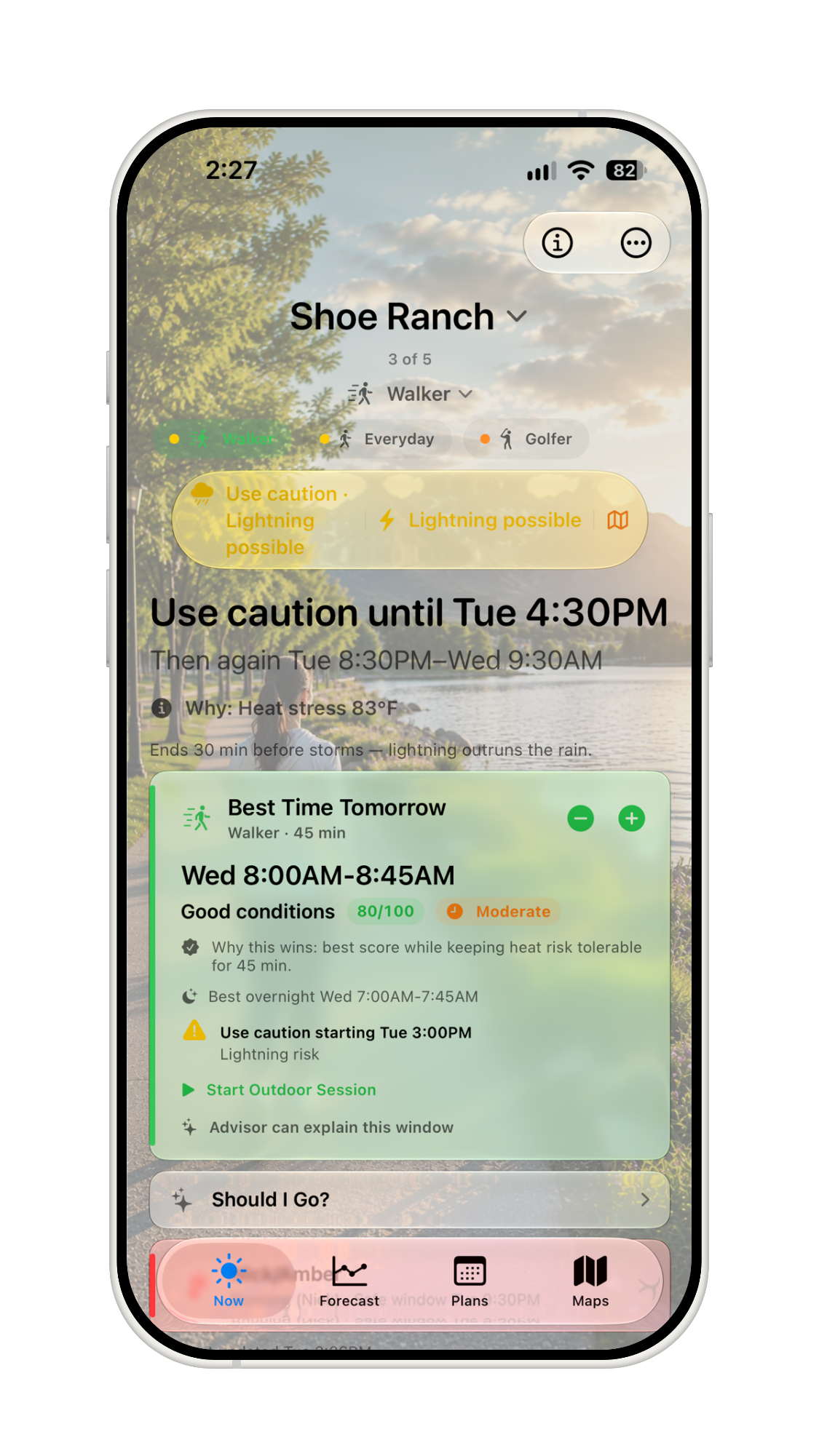
Storm Window is organized around four tabs: Now, Forecast, Plans, and Maps. Start with `Now` when you need the answer, then open `Forecast` when you want the timing pattern and details behind it.
- Choose the place you care about.
- Choose the activity you are doing.
- Read the current risk and time remaining on `Now`.
- Use `Forecast` to see which hours are improving or getting worse.
- Use `Best Time Today` and `Start by` when you need to choose when to begin.
New to Storm Window? Start with the Quick Start, then return here for deeper explanations.
Understanding Risk
Storm Window risk is outdoor safety guidance for the selected activity and place. It is not a general weather pleasantness score, and it is not just a rain or cloud indicator.
- Low Risk means Storm Window does not currently see a major activity-relevant hazard closing the window.
- Caution means a hazard or comfort concern is meaningful enough to pay attention to.
- Unsafe means the selected activity should generally be avoided for that hour.
- Dangerous means conditions are severe enough that you should seek safer conditions and official guidance.
The same cloudy hour can be Low Risk, and the same sunny hour can be Unsafe if heat, air quality, wind, lightning, water, or official alerts make the activity risky.
How Storm Window Thinks
Storm Window combines environmental data with what you are doing outside. The app keeps the raw weather values visible where useful, but the verdict comes from activity-specific risk classification.
Identical weather can produce different results for different activities. A cyclist is more sensitive to gusts than a walker. A golfer, paddler, or beachgoer may need more lightning lead time because shelter can be farther away. Water activities can add marine and cold-water hazards that a runner does not need to see.
Locations And Saved Places
Storm Window can use your current location or a place you search for and save. A saved place keeps its forecast cache, display name, activity context, widgets, and Watch complication behavior easier to manage.
Use the current location
Use current location when you want the forecast for where you are now. If location access is unavailable, you can search for a city or ZIP/postal code instead.
Use saved places
Saved places are useful for locations you check repeatedly, such as Home, Lake House, Track, Marina, Course, or Job Site. Subscription tiers change how many active saved places you can keep available.
Saved locations can also watch multiple activities per place. A single place can matter for golf, swimming, and boating at different times.
Activities And Personalization
Choose an activity before trusting the timing. The selected activity changes thresholds, details, and which hazards are shown. Storm Window supports everyday outdoor use, walking, running, cycling, stroller outings, babywearing, hiking, climbing, golf, racquet and field sports, beach, pool, open water, boating, paddling, fishing, outdoor work, snow sports, and tactical training.
Pro adds more built-in activity profiles, custom Activity Profiles, and a Personal Profile for heat, estimated heat stress, air quality sensitivity, fitness, and age-related tuning where those settings apply.
Personalization changes how risk is classified. It does not change the displayed weather value. For example, the app may still show the same AQI or heat index, while rating that hour differently for your selected activity and profile.
Reading The Forecast
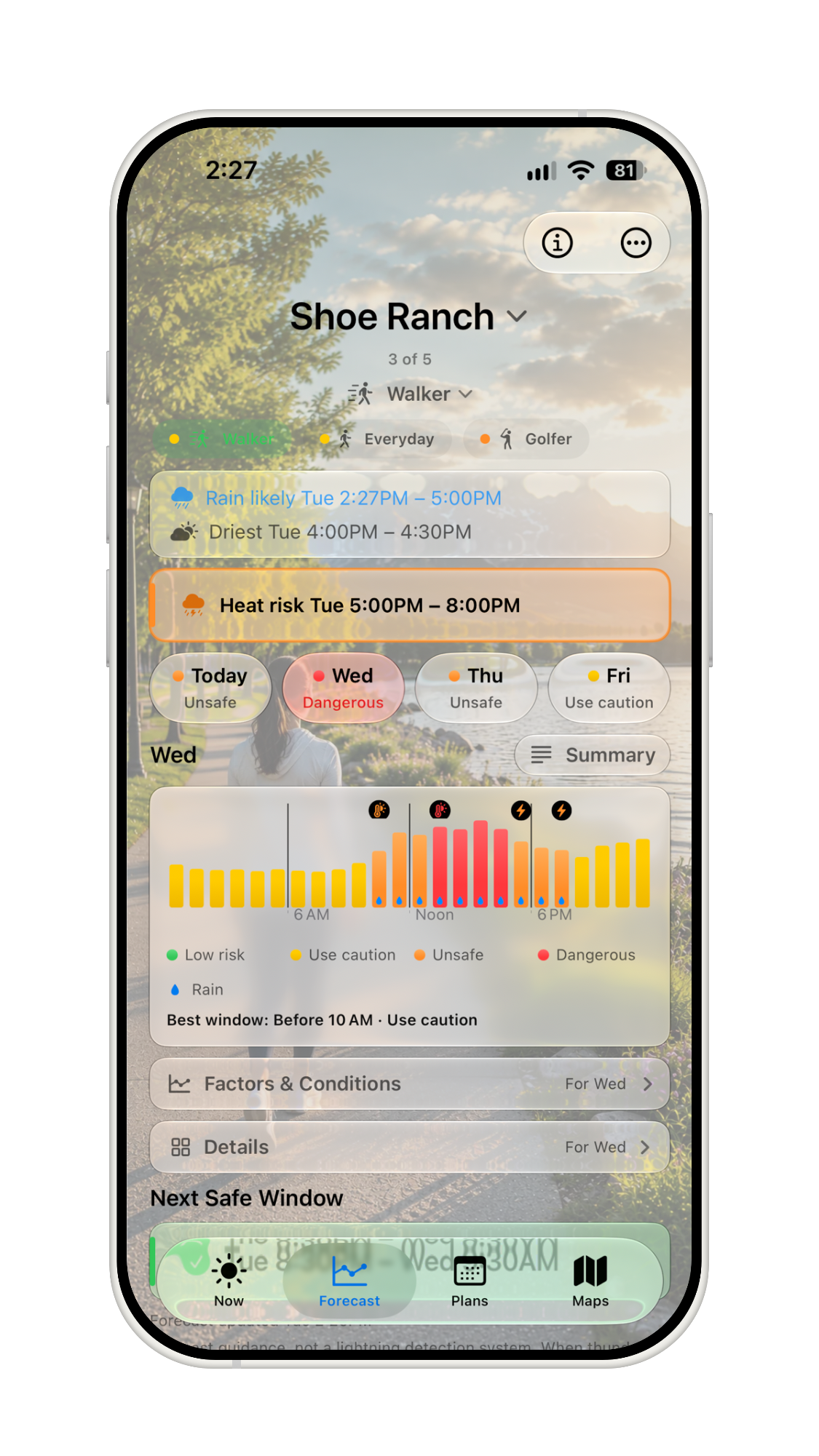
The `Forecast` tab shows the hourly pattern behind the current answer. Use it when you want to know whether the window is steady, closing, or opening later.
- The risk chart uses the same Low Risk, Caution, Unsafe, and Dangerous colors as `Now`.
- Daily pages help you scan Today, Tomorrow, and the next relevant forecast day.
- Hourly details expose weather values, alerts, and activity-relevant context.
- Condition highlights and advisory cards can add planning context without changing the risk by themselves.
Factors Vs. Conditions
Storm Window separates signals that affect risk from context that helps you plan.
| Type | Meaning | Examples |
|---|---|---|
| Factors | Signals that drive or explain the risk verdict. | Wind Gusts, Heat, Storms, Air Quality, Marine, Cold Water, Alerts. |
| Conditions | Informational context that does not close the low-risk window by itself. | Wind Speed, Precip, Temp, Feels Like, Sky, UV, Comfort. |
Free users can preview Factors and Conditions. Pro and Pro+ unlock full chart inspection and deeper hourly detail.
Risk Profile Chart
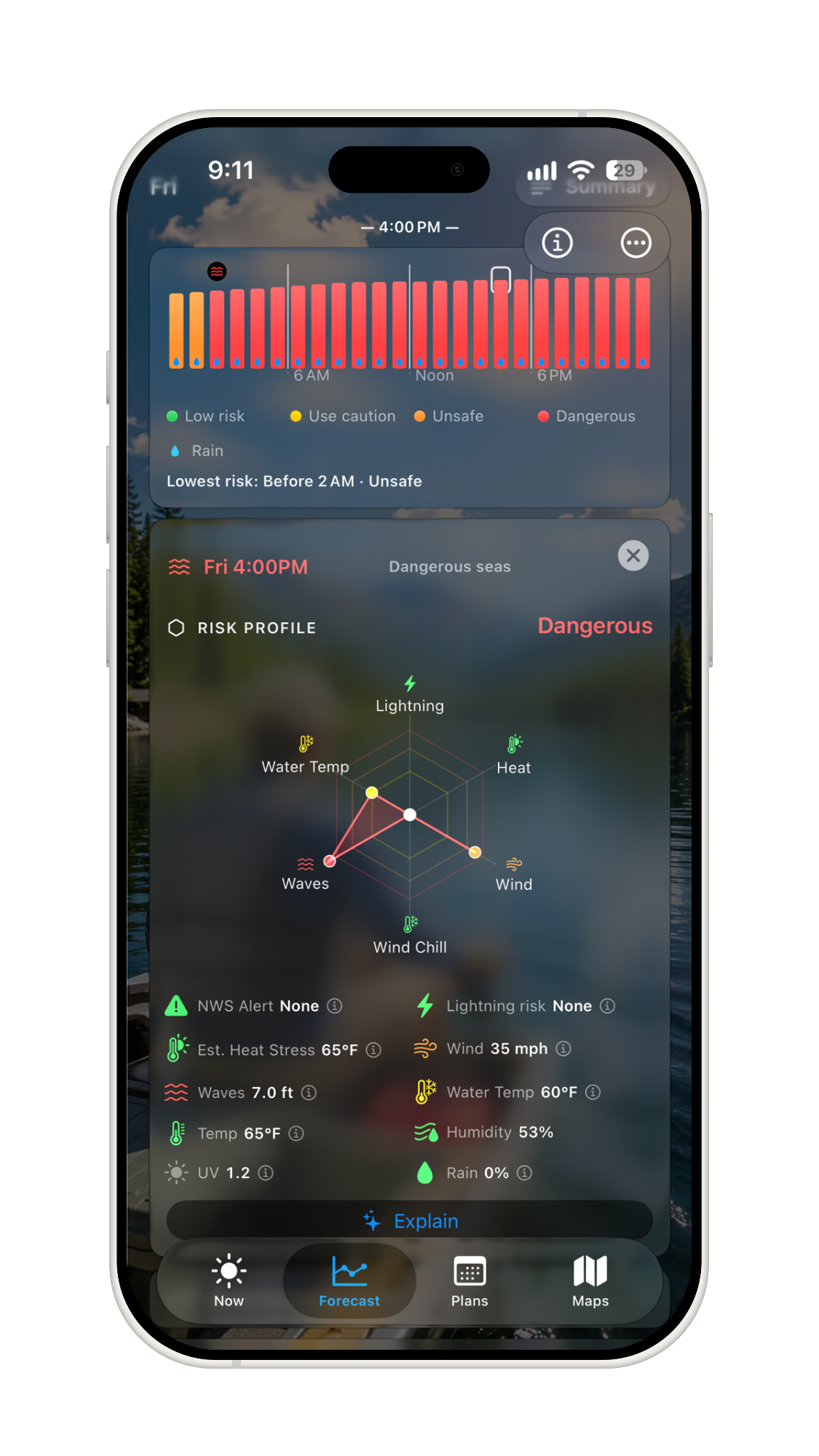
The Risk Profile chart is a Pro radar/spider chart inside an hour’s expanded detail panel. Where the risk chart on `Forecast` answers “when,” the Risk Profile chart answers “why this hour, specifically” — it breaks that hour’s rating into the individual hazards behind it: lightning, heat, wind, wind chill, air quality, and for water activities, waves and water temperature.
- Each spoke is one hazard. How far the point sits out along a spoke reflects that hazard’s severity for your selected activity, not a raw weather number, so a spoke can read differently for the same weather depending on what you are doing.
- The colored rings mark the same Low Risk, Caution, Unsafe, and Dangerous bands used everywhere else in the app — the chart teaches the existing scale rather than introducing a new one.
- Tap any axis to open the same on-demand hazard explanation the Apple Intelligence educational cards use elsewhere in the app.
- The chart only visualizes Storm Window’s existing risk-engine output for that hour. It never computes its own score, so it can’t disagree with the headline verdict — it is a lens on the same math, not a second opinion.
Open it by tapping any hour on the `Forecast` tab’s risk chart; the Risk Profile chart appears at the top of that hour’s detail panel, above the individual factor values and the `Explain` button.
Compare to now
`Compare to now` on the `Best Time Today` card (see Best Time Today) opens a Risk Profile Comparison: the current hour’s chart next to a second chart for the recommended window. The window chart shades each hazard as a range — its lowest and highest severity across the whole window — instead of a single hour’s reading, so you can see how much a hazard actually varies between now and later, not just where the window starts.
Risk Profile requires Pro. Free sees a condensed summary in the per-hour detail panel instead of the chart.
Activity Profiles
An Activity Profile describes the kind of exposure Storm Window should judge. Profiles include thresholds, typical duration, intensity, preferred timing, and which hazards are relevant.
Built-in profiles
Built-in profiles cover common outdoor activities. Free includes core profiles such as Everyday, Walker, Runner, Cyclist, Stroller, and Using a Baby Carrier. Pro adds additional built-in profiles for more specialized outdoor situations.
Custom profiles
Custom Activity Profiles let Pro users tune an activity for personal or specialized use. Storm Window keeps safety guardrails in place: custom profiles do not let you disable lightning safety, ignore severe weather, or edit raw storm-model thresholds.
Duration And Exposure
Duration matters because being outside for 20 minutes is different from being outside for three hours. Storm Window uses the selected activity’s typical duration, and in some places lets you adjust the duration for the current recommendation.
A longer duration may require a longer low-risk window and can make approaching hazards more important. A short outing might fit before conditions change; a long outing may need to wait for a cleaner window.
Best Time Today
`Best Time Today` is Pro planning guidance. It finds a low-risk window for the selected activity and duration, then ranks that window with a quality label and score.
- Excellent, Good, Fair, Poor describe planning quality, not a separate safety verdict.
- The numeric score helps compare usable windows.
- `Next best` appears when there is another useful candidate.
- A deterministic reason explains why the selected window wins or why it ends.
Quality never turns an unsafe hour into a safe one. Safety verdict, quality, and confidence are separate concepts.
Use `Compare to now` on this card to see how each hazard differs between right now and the recommended window — see Risk Profile Chart.
Start By
`Start by` is the latest practical time to begin and still finish the selected duration before conditions change. It answers a different question than `Best Time Today`: not only when the best window starts, but how late you can reasonably begin.
Start-by guidance can become less certain when the forecast is stale, far into the future, missing key hourly fields, or sparse near the end of the available forecast. When that happens, Storm Window may show lower confidence language.
Forecast Confidence
Confidence describes timing uncertainty. It does not make a hazard more or less dangerous, and it does not change the risk verdict. Instead, it tells you how much caution to use with timing guidance like `Start by`, `Next best`, or Plan monitoring.
Confidence can drop when forecast data is old, far in the future, missing critical fields, or thin around the target window.
Why It Ends
Storm Window shows deterministic explanation for why a lower-risk window ends. The cause can be lightning, storms, heat, wind, air quality, marine hazards, cold water, precipitation planning changes, or official alerts depending on the selected activity and available data.
This explanation is available without requiring AI. Pro+ advisor features may elaborate, but the app’s risk engine remains the source of truth.
Maps
The `Maps` tab gives spatial context for hazards that are easier to understand geographically. Use it after reading `Now` or `Forecast`, especially when lightning or wind is part of the decision.
Maps are context, not a replacement for the risk verdict. Storm Window’s low-risk window still comes from the app’s point forecast, activity thresholds, personal settings, and official-alert handling.
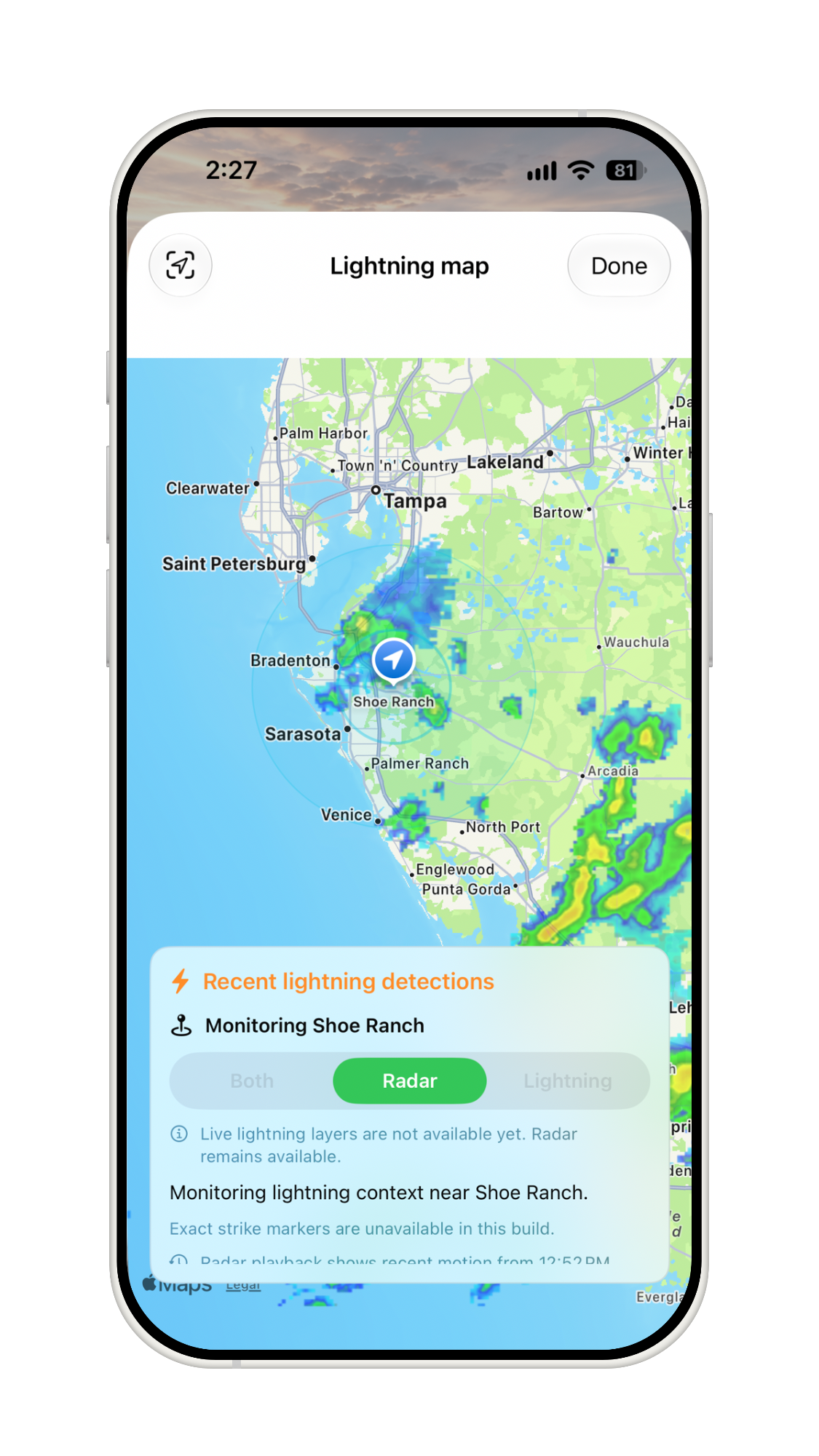
Lightning Map
Lightning Map is for current and recent lightning context. It can show NOAA radar, NOAA lightning activity density, distance rings around the monitored location, and recent radar motion so you can understand whether nearby activity is moving through the area.
The map does not forecast future lightning. It does not promise the next strike location, ETA, closest approach, or an all-clear. Treat it as recent detection and radar context alongside the app’s risk verdict and official safety guidance.
If the app cannot load a NOAA layer for the current map area, Storm Window should show status text instead of inventing missing data. Basic radar context is available where supported; backend live-lightning enrichment and recent strike context are Pro+ dependent where enabled.
Lightning safety: Do not wait for Storm Window before seeking shelter. When thunder roars, go indoors.
Wind Map
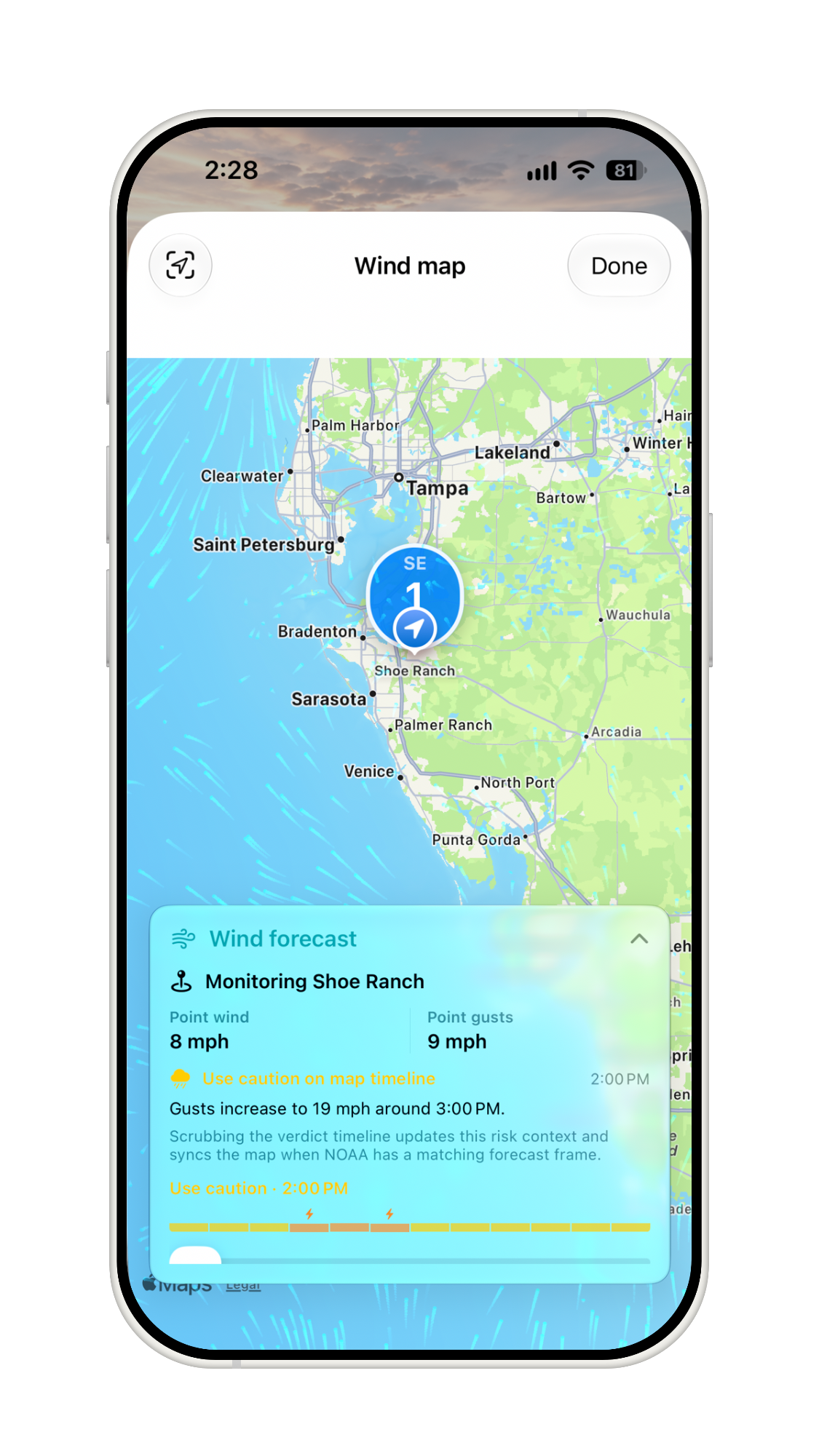
Wind Map looks ahead using NOAA/NWS forecast imagery so you can see whether wind is improving, worsening, or spatially different nearby. It supports `Wind`, `Gusts`, and `Wind + Radar` views.
- Wind shows wind speed and direction context.
- Gusts shows NOAA gust imagery where available.
- Wind + Radar combines wind context with radar imagery.
- Arrows show sampled NOAA wind direction data.
- Flow is a Pro wind animation powered by backend NOAA HRRR wind vectors where coverage and forecast time are supported.
The Wind Map includes a forecast timeline. Scrubbing the timeline updates the verdict context and syncs the map when NOAA has a matching forecast frame. The map may also show point wind and gust values from Storm Window’s forecast so you can compare local numbers with the spatial imagery.
Wind Flow has coverage limits. It can be unavailable outside supported NOAA HRRR coverage, outside supported forecast hours, while offline, or when backend wind-grid data is temporarily unavailable. When that happens, Storm Window should show a status message rather than fabricated animation.
Weather And Hazard Details
Storm Window treats hazards differently depending on whether they can change the low-risk window for the selected activity or provide planning context.
| Hazard or detail | How to read it |
|---|---|
| Lightning and storms | Can close the window before rain arrives. Lightning Map adds recent context but does not forecast future strikes. |
| Wind and gusts | Can affect exposed activities, cycling, boating, field sports, snow sports, and other wind-sensitive situations. Wind Map adds spatial forecast context. |
| Heat, feels-like temperature, and estimated heat stress | Can raise risk based on activity intensity, duration, and Personal Profile settings where available. |
| Air quality | Can affect the verdict when AQI is high, especially for longer or higher-intensity activities and sensitive users. |
| Marine, waves, beach hazards, and cold water | Apply to beach and water profiles when relevant. Land-only activities do not need the same water-specific details. |
| Official alerts | Can make the app more cautious when an official warning or alert is more conservative than matching local model data. |
| Rain, snow, UV, sky, and comfort | Generally planning context. They help you prepare but do not close the low-risk window by themselves unless tied to another implemented hazard rule. |
Plans
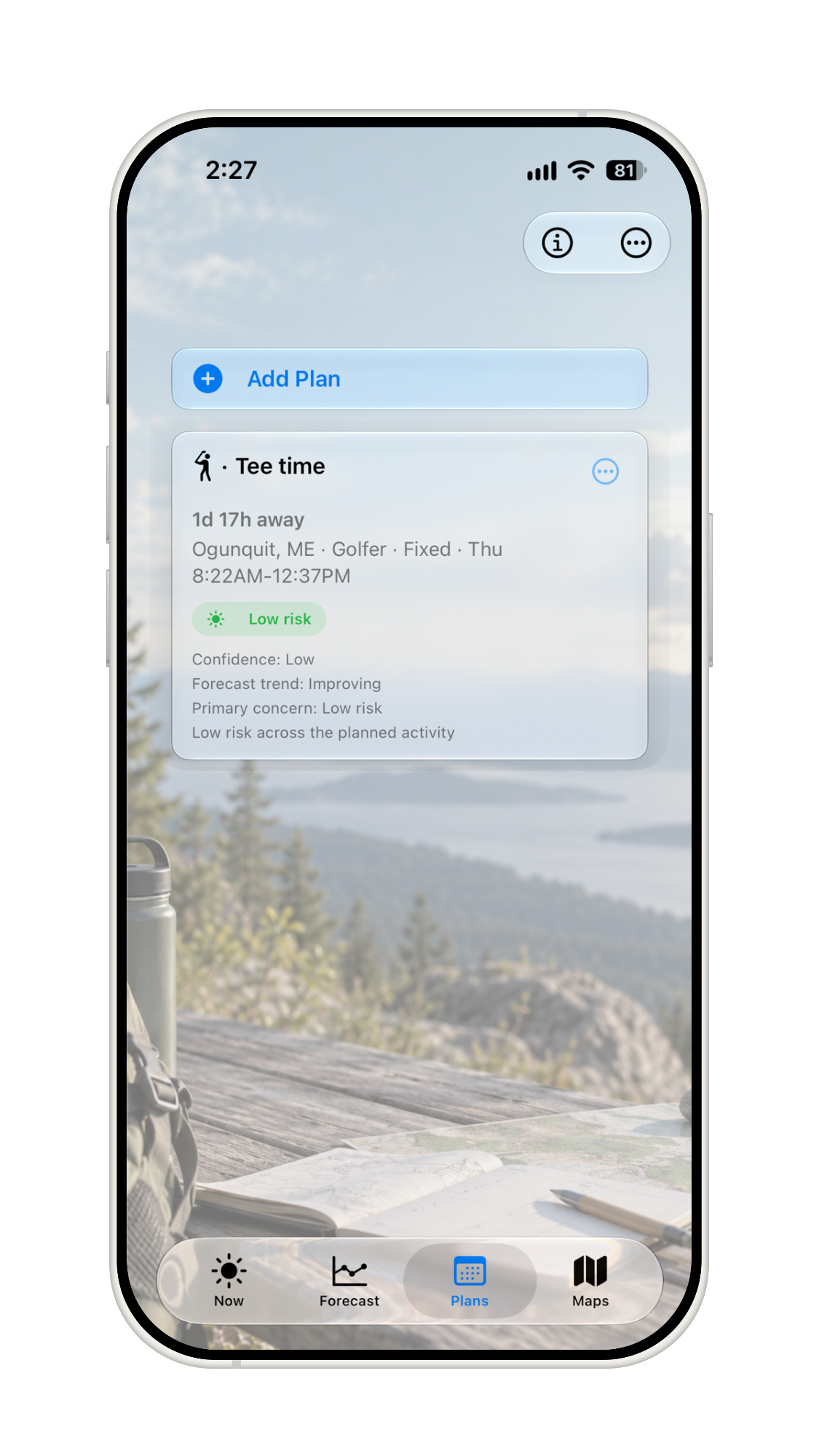
`Plans` are Pro+ future commitments you want Storm Window to monitor as the forecast changes. A Plan has a title, place, activity, and time window. The place does not need to be one of your saved locations; Storm Window looks it up when you create the Plan.
Fixed Plans
Use a Fixed Plan when the time is already set, such as a tee time, race start, practice, outdoor work shift, swim meet, or scheduled trip. Storm Window assesses the planned start and end time and can show the risk, confidence, forecast trend, primary concern, and a best alternate start when the fixed time has degraded and a better nearby window exists.
Flexible Plans
Use a Flexible Plan when you can choose the start time. Pick the earliest start, latest start, duration, activity, and location. Storm Window recommends a start inside that allowed range when a suitable window exists, then shows the recommended range on the Plan card.
Plan cards can show whether the forecast is improving, worsening, stable, or shifted in timing since the last assessment. Confidence describes timing support for the Plan; it does not change the risk verdict. The primary concern names the main reason the planned window is risky when Storm Window can identify one.
Pro+ explanation features can explain a Plan window from deterministic facts already computed for that Plan. If AI wording is unavailable, Storm Window can still use its deterministic explanation path. The risk engine remains the source of truth.
When sharing is available, `Share Plan` creates a static image/text card. Recipients can view that shared image without installing Storm Window or subscribing.
Alerts And Notifications
Storm Window has several alert types. Turning an alert on asks for notification permission the first time. You can turn notifications off in Storm Window settings or iOS Settings.
| Alert | What it means | Availability |
|---|---|---|
| Imminent hazard alerts | Alerts shortly before the current safe window closes for the active location. | Available to everyone. |
| Window-change alerts | Alerts when the current risk level changes for the active location. | Pro+. |
| Best-window alerts | Alerts ahead of an upcoming all-clear or best-window opening. | Pro+. |
| Next window changed | Alerts when the next safe window appears, disappears, or shifts to a new start time. | Pro+. |
| Morning briefing | A daily summary of today's outlook at the time you choose. | Pro+. |
| Plan forecast alerts | Alerts when the forecast for a pinned Plan's planned time worsens as it approaches. | Pro+ Plans. |
Some alerts are scheduled locally on your device from the latest cached forecast. Some backend delivery paths are used only where that specific feature is enabled and eligible. Storm Window avoids sending one notification per watched activity for the same approaching hazard.
Outdoor Session
An Outdoor Session keeps the current activity window visible while you are outside. It stores the selected activity, place, start time, expected end, current risk, remaining usable time, and next change. It is a weather-exposure session, not a workout tracker.
Start an Outdoor Session from the Best Time Today card or supported system surfaces. Stop it when you are done. Storm Window keeps a single active session so old session state does not compete with the current one.
While a session is active, supported Lock Screen and Dynamic Island presentations can include quick controls. +15 min extends the planned session duration and recalculates the remaining usable window from cached forecast data. End stops the Outdoor Session and dismisses the Lock Screen and Dynamic Island Live Activity for that session.
Outdoor Sessions do not collect pace, distance, calories, heart-rate data, or route history. They use cached forecast guidance and local device state to keep the risk and remaining-time information visible.
Live Activity, Lock Screen, Dynamic Island, And Watch
On supported iPhone models, an Outdoor Session can appear as a Live Activity on the Lock Screen and Dynamic Island. It can show current risk, remaining usable time, the next change, and compact controls for extending or ending the session. Storm Window also schedules a local check-in near the expected end of the session.
The Lock Screen and Dynamic Island are two presentations of the same ActivityKit Live Activity. Ending the session from either the Live Activity controls or the app ends that shared session, so both surfaces should stop showing it. iOS may animate or briefly delay removal, but Storm Window treats the session as ended immediately.
Where Pro+ backend Live Activity updates are enabled, Storm Window can register limited session metadata so backend monitoring can keep the Live Activity current while the app is not in the foreground. This is separate from ordinary notification pushes and still uses the same activity-specific risk engine.
Apple Watch can show active weather-session information such as activity, risk, remaining time, and next change, and the shared session record can migrate older Watch session state into the unified Outdoor Session model. Watch behavior depends on the Watch app, cached forecast state, and connectivity.
If Live Activities are disabled in iOS settings, Storm Window cannot start the Live Activity surface. The underlying forecast and risk guidance still remain available in the app.
Apple Watch
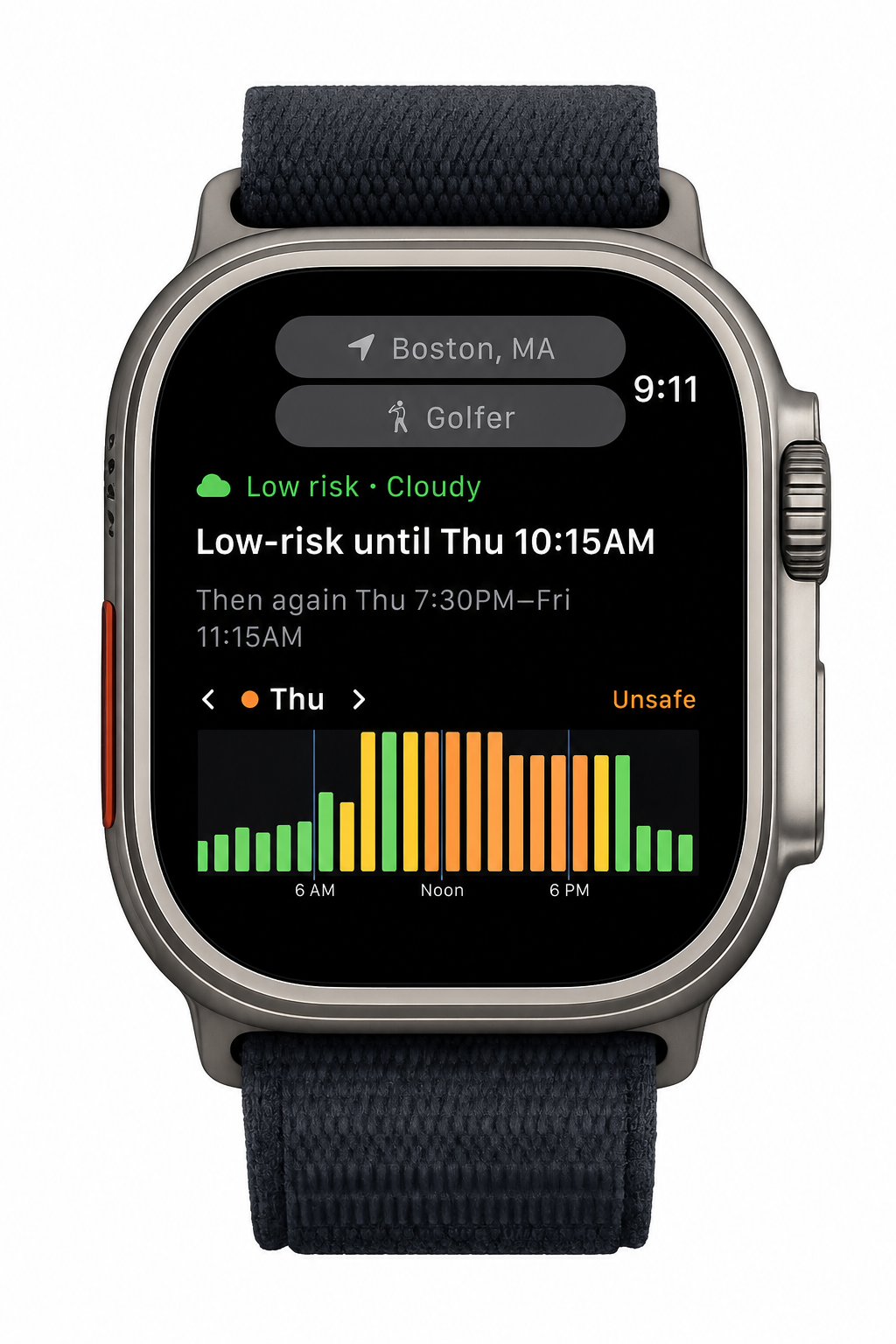
Storm Window on Apple Watch shows the current verdict, safe-window headline, selected location, selected activity, and a compact hourly risk chart. The Watch starts from iPhone-relayed forecasts, saved locations, activity profiles, subscription state, and settings, then can keep its own wrist context.
If you change the location or activity in the Watch app, default Watch complications follow the Watch app. Pro users can pin a saved location or activity in a complication; pinned choices stay pinned until you edit the complication.
The Watch can refresh without the iPhone when it has its own network connection. It uses cached forecasts when offline, recomputes the headline as time passes, and can fetch a fresh forecast when the cache is stale or you pull to refresh. The Watch app can also set a Watch Current Location using a one-time, city-scale location fix from the Watch.
Use the iPhone app to add, rename, delete, and organize saved locations. The Watch app does not schedule the iPhone's imminent-hazard local notifications.
Widgets, Complications, And Control Center
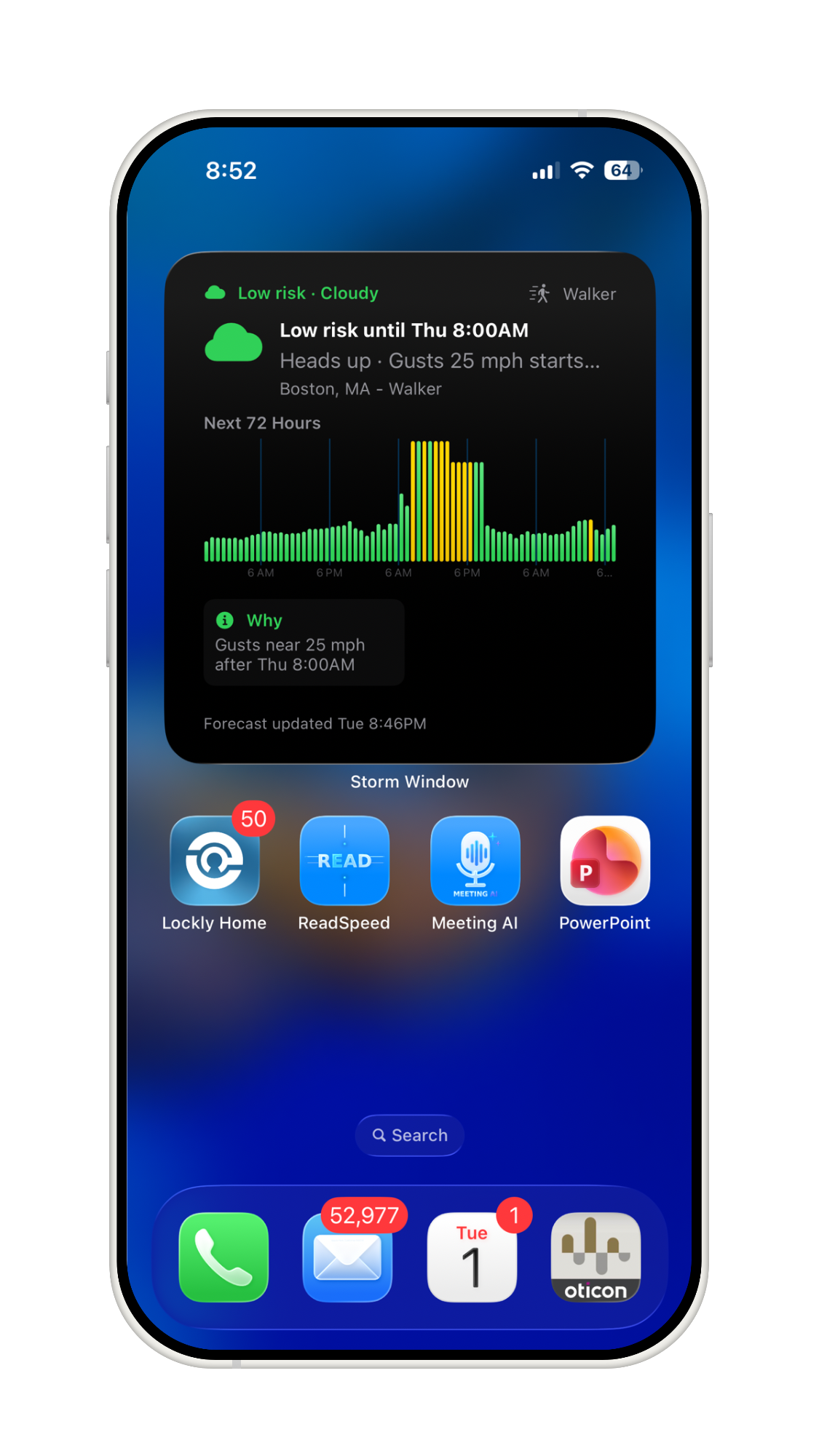
Storm Window widgets show compact risk and safe-window guidance without opening the app. Home Screen widgets can show the current verdict, timing, chart context, and forecast freshness. Lock Screen widgets provide smaller at-a-glance versions of the same cached guidance.
Widgets can follow the active app location and activity or be configured for a saved place and activity. When a widget has enough cached data, it emits timeline entries at risk transitions so the display can change at the right time without waiting for a random refresh.
Apple Watch complications support rectangular, inline, circular, and corner families. They can follow the Watch app or use Pro pinned location/activity configuration. Complications may fetch directly from the Watch during WidgetKit timeline refreshes, but watchOS controls how often background refreshes happen.
Control Center controls are available for `Current Risk`, `Next Safe Window`, and `Start Outdoor Session`. The read-only controls use the App Group cache; if no usable cached forecast exists, they prompt you to open Storm Window.
Siri And Shortcuts
Storm Window provides App Shortcuts for common outdoor-safety questions. These read from cached Storm Window forecast facts, so the answers match the app's current deterministic assessment when the cache is usable.
| Shortcut | What it answers | Tier |
|---|---|---|
| Check Safety | Current outdoor safety verdict. | Free. |
| Next Safe Window | When the next safe window opens, including supported time slots. | Free. |
| Is It Safe to Go? | Activity-aware safety guidance for an activity and optional time. | Free. |
| Risk at Location | Risk at a saved location. | Free. |
| Best Time to Go | Duration-aware best-time guidance for an activity. | Pro. |
| Current Window | How long the current activity window remains usable. | Pro. |
| Plan Status | Status for a saved Plan. | Pro+. |
| Start Session | Starts an Outdoor Session where supported. | Pro. |
If there is no usable cached forecast, or if you ask for a time outside the supported forecast range, Siri and Shortcuts should ask you to open Storm Window for the latest outlook instead of inventing an answer.
Settings
Use `Settings` to manage the parts of Storm Window that affect future guidance: subscription state, activity behavior, Personal Profile, alert categories, display preferences, Apple Watch and widget behavior, and privacy-sensitive explanation paths.
Safety Alerts
`Imminent hazard alerts` are available to everyone for the active location. Pro+ adds window-change alerts, best-window alerts, next-window-changed alerts, morning briefing, and Plan forecast alerts. Turning any alert on asks for notification permission the first time.
Display
`Show rain & snow` controls the informational precipitation overlay. `Other locations ticker` is a Pro display option that shows cached urgent conditions for other saved places. `Chart style` changes how the same 3-day risk data is drawn.
Rain and snow are planning context; this display setting does not make precipitation close or reopen the safety window by itself.
Personalization
Pro and Pro+ unlock Personal Profile and custom Activity profile controls. These settings tune how Storm Window classifies risk for your activity, duration, intensity, heat tolerance, air-quality sensitivity, and related options. They do not change the underlying reported weather values.
Privacy-sensitive controls
Storm Window does not require an account. Most app data stays on your device. Pro+ server-generated Advisor summaries, backend safety-alert paths, push notifications, purchases, and map/wind services use the limited external services described in the Privacy Policy. Turn off optional server-generated Advisor summaries or notification categories in Settings when you do not want those paths used.
Free, Pro, And Pro+
The `Subscription` section in Settings shows your `Current plan`, store buttons, `Restore Purchases`, and `Manage Subscription` when purchase management is available. Use Restore Purchases after reinstalling or moving to a new device. Use Manage Subscription to review, change, or cancel the App Store subscription.
| Capability | Free | Pro | Pro+ |
|---|---|---|---|
| Saved locations | Follow My Location plus 1 other. | Follow My Location plus up to 10 others. | Follow My Location plus up to 25 others. |
| Watched activities per saved location | Up to 2. | Up to 5. | Unlimited. |
| Built-in activities | Core free profiles such as Everyday, Walker, Runner, Cyclist, Stroller, and Using a Baby Carrier. | Full built-in activity set. | Full built-in activity set. |
| Custom Activity profiles and Personal Profile | Not included. | Included. | Included. |
| Best Time Today, Start by, Outdoor Session, full hourly details, Activity comparison, configurable widgets, and Wind Flow | Core current-risk guidance and previews where available. | Included. | Included. |
| Factors & Conditions charts | Interactive preview with Pro overlay. | Full inspection. | Full inspection. |
| Plans, proactive monitoring, proactive alert categories, advisor explanations, share snapshots, and Plan cards | Not included. | Not included. | Included. |
| Siri, Shortcuts, and Control Center | Current safety, next safe window, risk at location, and related cached verdicts. | Adds duration-aware Best Time, Current Window, and Start Session. | Adds Plan Status. |
If restore fails, check that the device is online and signed into the Apple ID that purchased Storm Window Pro or Pro+. Purchases are processed by Apple and entitlement status is mirrored through RevenueCat so Storm Window can unlock the right features.
iCloud Sync
Storm Window uses iCloud to keep key settings synchronized across your iPhone and iPad on the same Apple ID. There is no Storm Window account and no manual sync button.
What syncs
- Saved locations, including renames and deletes.
- Custom Activity profiles.
- The selected Activity profile.
- Personal Profile settings.
- The Cautious Lightning setting.
What stays on each device
- The active location currently shown on that device.
- Notification settings and OS notification permission.
- Display preferences such as chart style, rain/snow overlay, and other-locations ticker.
- Device identifiers used for push delivery or backend alert registration.
If you edit the same synced item on two devices around the same time, the most recently saved change wins when iCloud catches up.
Troubleshooting
The forecast won't load
Storm Window needs an internet connection to fetch a fresh forecast. If a fetch fails, it uses the last cached forecast when possible. Check the connection, then pull to refresh. Extra U.S. thunderstorm probabilities and active National Weather Service alerts are unavailable outside the United States, but the core forecast can still work elsewhere.
NOAA map imagery and backend wind-flow grids can fail independently of the main forecast. When that happens, Storm Window keeps available point-forecast guidance visible and shows a map status message for the unavailable layer.
The app can't find my location
Make sure location access is enabled in iOS Settings under Privacy & Security. You can also skip device location entirely and type a city, state, ZIP, or postal code. Use `Reset Location` in Storm Window's location menu if the saved spot needs to be cleared and set again.
Purchases won't restore
Open Settings in Storm Window and tap `Restore Purchases`. Restoring requires network access and the same Apple ID used for the original purchase. If `Manage Subscription` is shown, use it to confirm the App Store subscription state. If Storm Window still shows the wrong plan after Apple confirms the subscription, contact support with the device, app version, and approximate time you tried restoring.
Widgets or Watch look stale
Widgets, complications, Siri, Shortcuts, and Apple Watch surfaces read cached Storm Window facts. Open Storm Window and refresh the forecast, or open the Watch app and pull to refresh when the Watch has connectivity. If no usable cache exists, those surfaces should ask you to open Storm Window instead of inventing guidance.
Data And Methodology
Storm Window uses forecast and environmental data sources such as Open-Meteo, Open-Meteo Marine, and U.S. National Weather Service data where available. The app combines those data sources with activity-specific thresholds and settings to produce hourly risk guidance.
For published references behind default activity thresholds, see Threshold Sources.
Important: Storm Window provides forecast guidance and weather-risk context only. It is not a certified lightning safety system, emergency alert system, medical app, or guarantee of safe conditions. Do not wait for Storm Window: when thunder roars, go indoors.
More Guide Chapters
This guide covers the main decision workflow, map context, Plans, alerts, Outdoor Sessions, Apple Watch, widgets, Control Center, Siri, Shortcuts, settings, subscriptions, sync, and troubleshooting. Use the companion pages below for the visual Quick Start, tier matrix, Watch-specific support, and common questions.